
Get started with TabBud. Save your first tab in a minute.
Pin TabBud to your toolbar and keep it as your new tab page. Then, on any page you want to keep, click the TabBud icon, click a Space to see its Collections, and click a Collection. The tab is saved instantly.
Step 1: Pin TabBud to your toolbar
Pinned, the TabBud icon sits next to the address bar, one click away on every page.
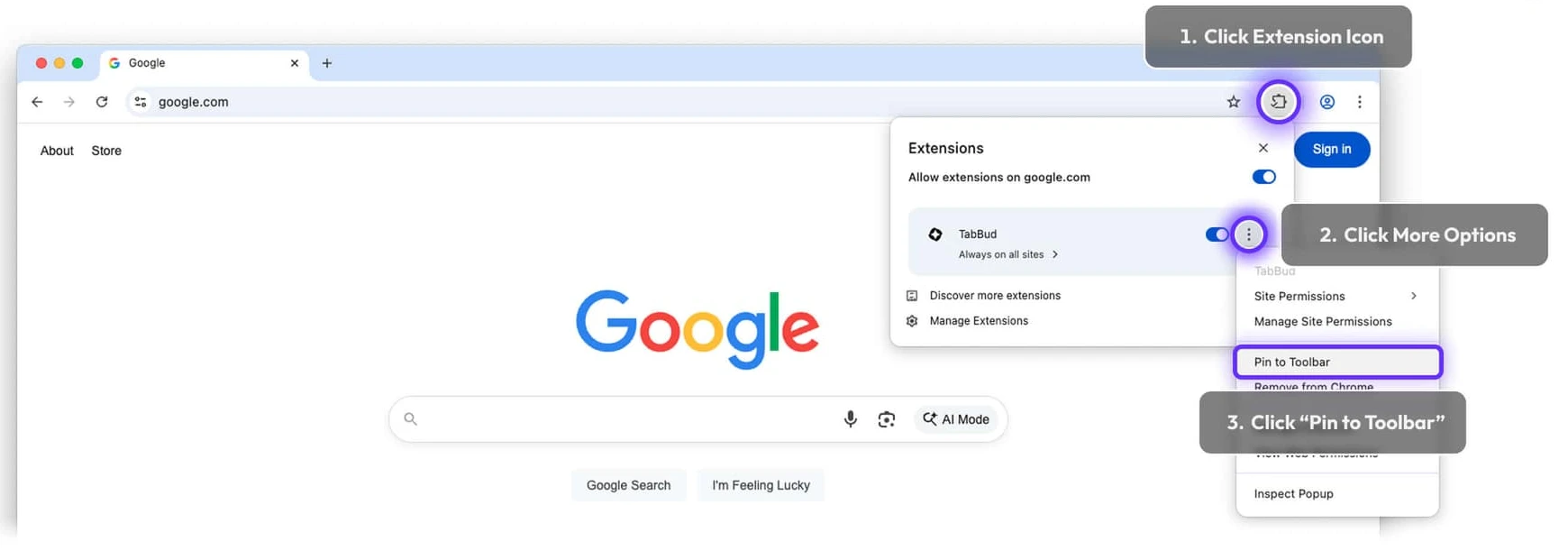
- Click the Extensions icon (the puzzle piece) to the right of the address bar.
- Next to TabBud, click More options (⋮).
- Click Pin to Toolbar. The TabBud icon now stays in your toolbar.
In Firefox, open the Extensions menu, click the gear next to TabBud and choose Pin to Toolbar. In Edge, click the eye icon next to TabBud.
Step 2: Keep TabBud as your new tab page
TabBud opens on your new tab page, so your Spaces, Collections and notes are there every time you open a tab.
- Open a new tab. TabBud loads there automatically.
- If your browser asks whether to keep this new tab page, keep it.
- Sign in with Google or with an email and password. Your library syncs from your first save.
Don't see TabBud on a new tab? Check that it's turned on in your browser's Extensions page (chrome://extensions in Chrome, about:addons in Firefox).
Step 3: Save the tab you are on
Saving takes two clicks once you know where the tab belongs.
- Open the page you want to save.
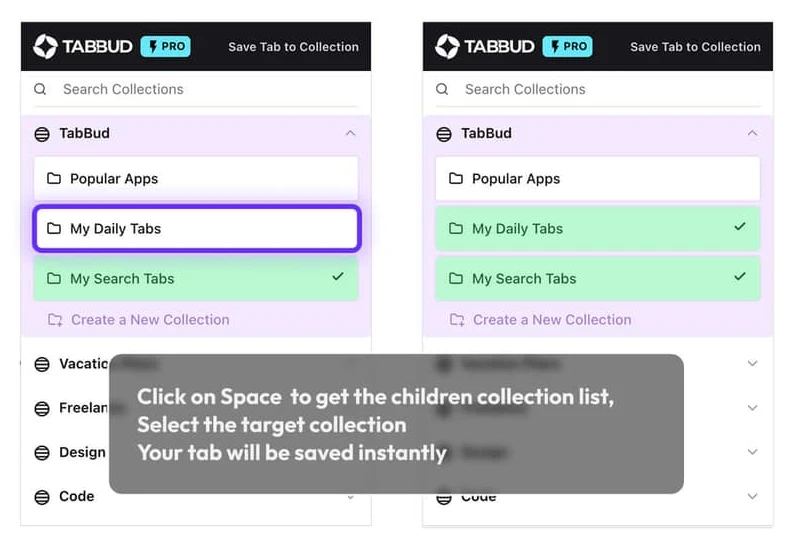
- Click the TabBud icon in your toolbar. The popup lists your Spaces.
- Click a Space to show its Collections.
- Click a Collection. The tab is saved instantly, and the Collection turns green with a check mark.
A tab can live in more than one Collection; each one that already holds it shows a check mark. You can also right-click any page and choose Save with TabBud.
Step 4: Save to a new Collection
No Collection fits? Make one from the popup without leaving the page.
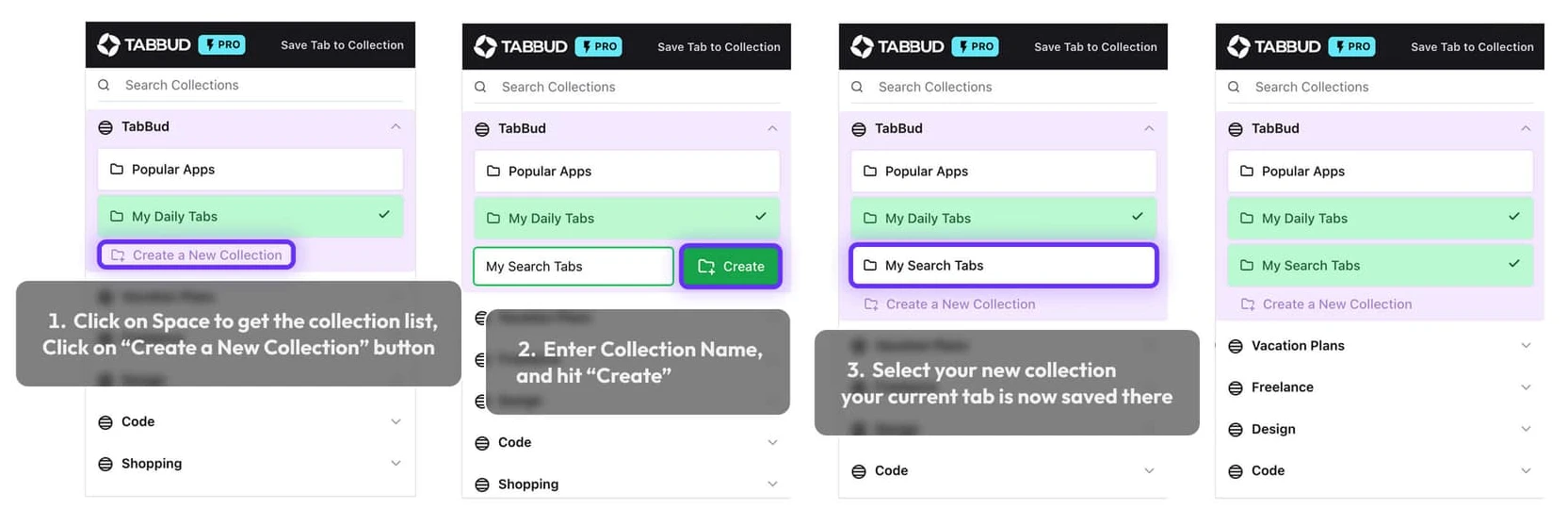
- Click the TabBud icon, then click the Space the new Collection belongs in.
- Click Create a New Collection.
- Type a name and click Create.
- Click your new Collection. The current tab is saved there.
Step 5: Find a Space or Collection fast
With lots of Spaces, search instead of scrolling.
- Click the TabBud icon.
- Type in the Search Collections box at the top of the popup. It matches both Space and Collection names as you type.
- Click the Collection you want, and the tab is saved there.
Once you're set up
Bring in what you already have
Import browser bookmarks, or a OneTab, Toby, Session Buddy or Workona export. You see a preview first, and duplicates are skipped.
Open a Collection as a tab group
Open every Card in a Collection at once, as one tab group in your browser.
Keep notes next to your tabs
The sidebar on your new tab page holds rich-text notes that sync with the rest of your library.