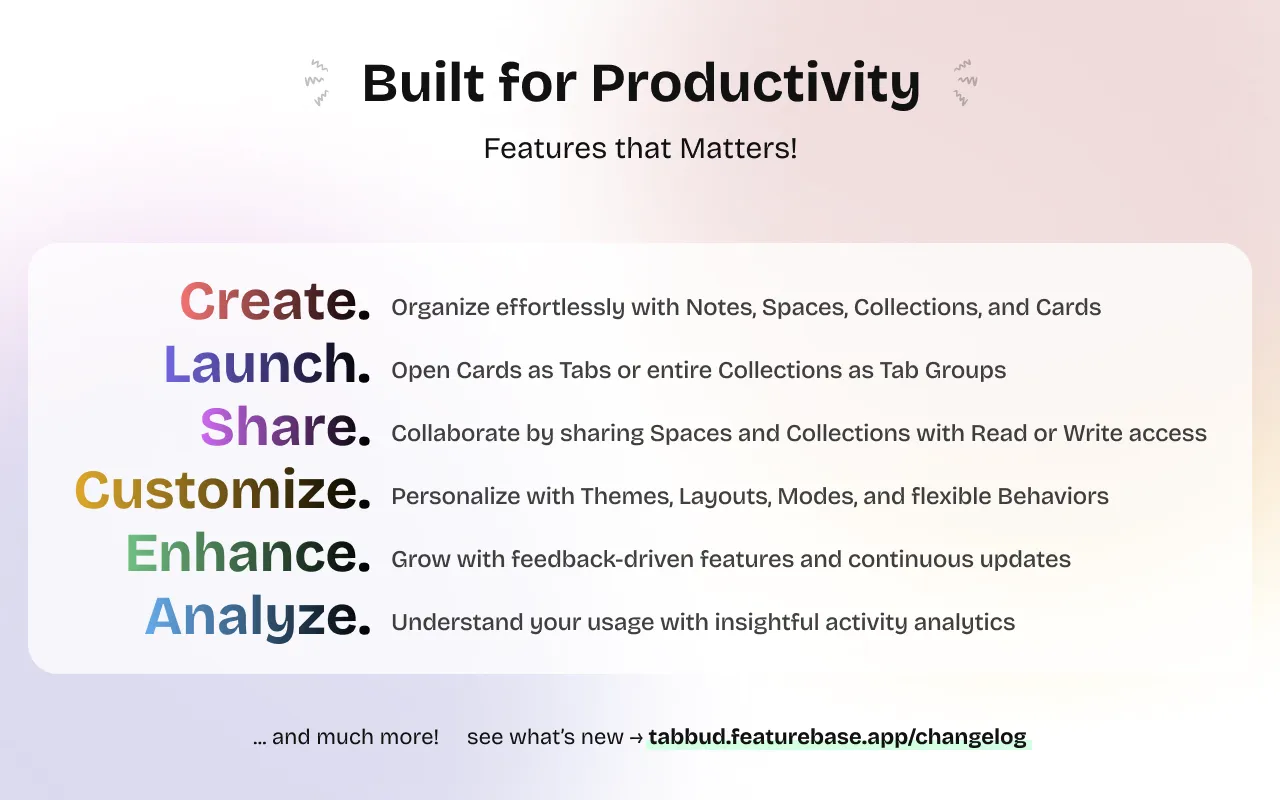
TabBud is packed with powerful features designed to transform how you manage browser tabs. This comprehensive guide explores every feature in detail, helping you unlock TabBud’s full potential and maximize your productivity.
Core Organization Features
Spaces: Your Top-Level Containers
Spaces are the foundation of TabBud’s organization system. Think of them as major categories that house all your related work.
Key Capabilities:
- Create unlimited Spaces (Pro Plan) or up to 5 (Free Plan)
- Organize by work area, client, project type, or life category
- Drag and drop to reorder based on priority
- Share Spaces with team members (Pro Plan)
- Customize with names and descriptions
Best Practices:
- Keep Spaces broad and high-level
- Use 3-7 Spaces for optimal organization
- Name Spaces clearly (e.g., “Client Work”, “Personal Projects”)
- Reorder frequently used Spaces to the top
Use Cases:
- Separate work and personal browsing
- Organize by client or department
- Create Spaces for different projects or initiatives
- Group learning resources by topic
Collections: Grouping Related Tabs
Collections live within Spaces and help you organize tabs by specific topics, projects, or themes.
Key Capabilities:
- Create unlimited Collections (Pro Plan) or up to 20 (Free Plan)
- Group related tabs together logically
- Reorder Collections within a Space
- Give each Collection its own color, so you can tell them apart at a glance
- Move a Collection to another Space (Update Collection → Move) without recreating it
- Share, Edit and Delete appear when you hover a Collection’s title, keeping the view clean
- Add descriptions for context
Best Practices:
- Create Collections for specific projects or topics
- Keep Collections focused and manageable
- Use descriptive names that indicate content
- Regularly review and consolidate similar Collections
Example Structure:
Work Projects (Space)
  ├── Q1 Marketing Campaign (Collection)
  ├── Website Redesign (Collection)
  └── Product Launch (Collection)
Cards: Your Saved Tabs
Cards are your saved tabs—each containing a title, URL, favicon, and description
Key Capabilities:
- Save unlimited Cards (Pro Plan) or up to 200 (Free Plan)
- Automatic title, URL, favicon and description capture
- Edit any details if needed post save
- Reorder Cards within Collections
- Launch Cards individually or as groups
- Search across all Card content
Card Information:
- Title: Automatically captured from webpage
- URL: Full webpage address
- Description: Optional custom description
- Favicon: favicon/logo
Saving Methods:
- Click TabBud icon in browser toolbar → Select Space/Collection → Save
- Right-click page → “Save with TabBud”
Intelligent Search and Discovery
Global Search
TabBud’s powerful search helps you find any saved tab instantly, even if you have hundreds or thousands saved.
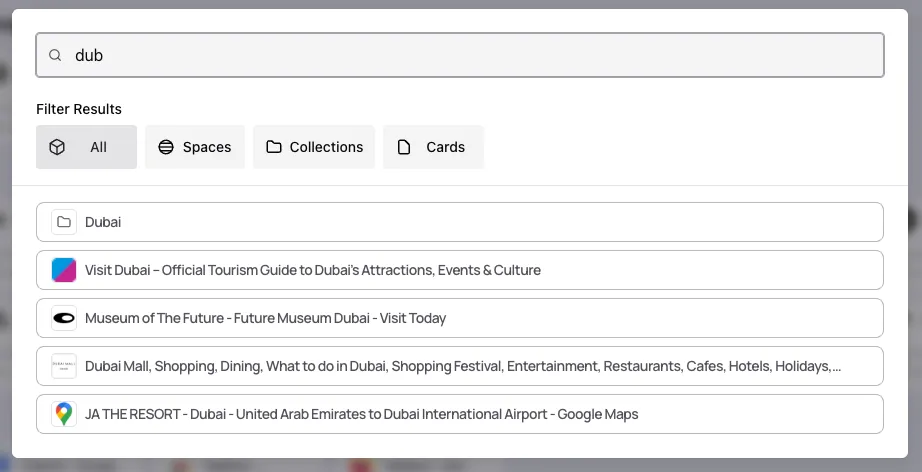
Search Capabilities:
- Search across titles, descriptions, URLs, Spaces and Collections
- Real-time search results as you type
- Filter by Space, Collection, or Cards
- Highlight matching terms in results
Advanced Search & Tips:
- Use specific keywords
- Search by domain name (e.g., “github.com”)
- Search by Title
- Search by Description
Note-Taking and Context
Rich-Text Notes
Capture context, insights, and reminders directly within TabBud using rich-text notes.
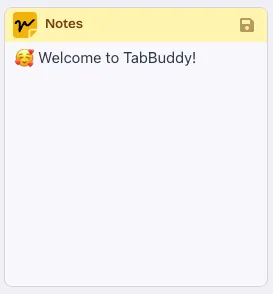
Note Features:
- Rich-text formatting (bold, italic, lists, links)
- Sync across all devices
- Searchable content
- Attach notes to any Card
- Edit notes anytime
Use Cases:
- Capture key insights from articles
- Add reminders or action items
- Document why you saved a tab
- Store relevant quotes or excerpts
- Create research summaries
Best Practices:
- Add notes when saving important tabs
- Use notes to capture context you might forget
- Include relevant keywords for better search
- Review and update notes periodically
- Use formatting to organize note content
Collaboration and Sharing
Shared Spaces
Share entire Spaces with team members for collaborative research and organization.
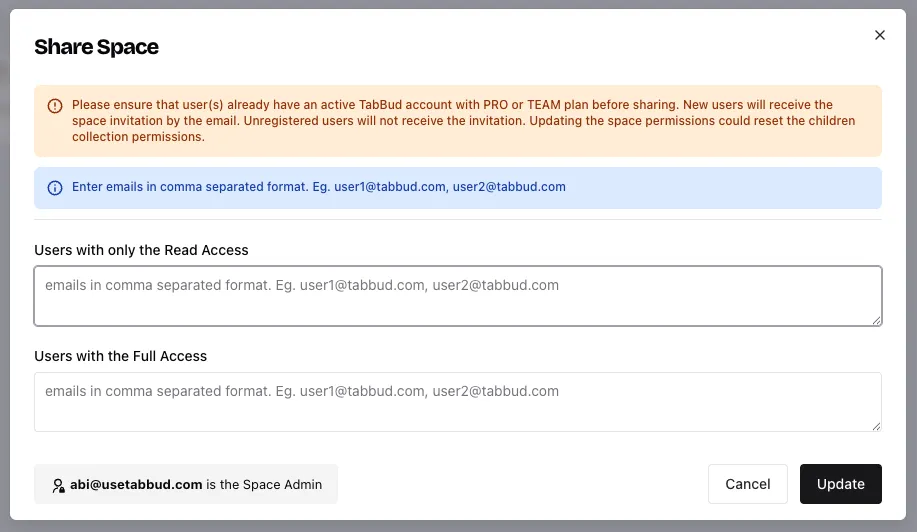
Sharing is part of TabBud Pro.
Sharing Features:
- Share Spaces with view or edit permissions
- Invite teammates who use TabBud (a free account is enough)
- Real-time collaboration on shared content
- Control who can view or edit
Permission Levels:
- View Only: Team members can see but not modify
- Full Access: Team members can add, edit, and organize
Use Cases:
- Collaborative research projects
- Team knowledge bases
- Shared client resources
- Group learning initiatives
- Cross-department collaboration
Cloud Sync and Cross-Device Access
Automatic Synchronization
TabBud uses a cloud-first approach, automatically syncing your data across all devices.

Sync Features:
- Automatic sync every few minutes
- Manual sync trigger available
- Real-time updates across devices
- Conflict resolution for simultaneous edits
- Sync status indicator
Supported Devices:
- Desktop browsers (Chrome, Firefox, Edge, Brave & Other Chromium based browsers)
- Multiple browsers on same device
- Work and personal computers
- Any device with TabBud installed
Sync Benefits:
- Access tabs from any device
- Never lose your organization
- Seamless workflow across locations
- Automatic backup in the cloud
Offline Access
Access your saved tabs and notes even without an internet connection.
Offline Capabilities:
- View all saved Cards
- Read notes and descriptions
- Access previously synced content
- Changes sync when connection restored
Customization and Personalization
Themes and Appearance
Customize TabBud’s appearance to match your preferences and workflow.
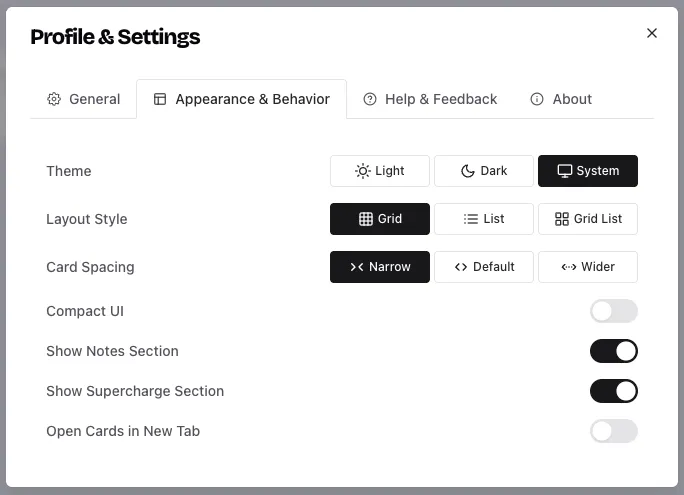
Theme Options:
- Light Mode: Clean, bright interface
- Dark Mode: Easy on the eyes, reduces eye strain
- System: Sync with Device’s theme
- More themes coming soon
Layout Style:
- Grid View: Visual card-based layout
- List View: Compact, text-focused layout
- Grid List View: Hybrid approach
Card Spacing:
- Narrow: Narrower cards - more cards in a row, better experience for high resolution screens
- Default: Default width cards - comfortable spacing
- Wider: Wider cards - fewer cards in a row, a better fit for lower-resolution screens
UI Preferences:
- Compact UI mode for more content
- Toggle visibility of Notes and Supercharge sections in the Sidebar
- Resize the sidebar: hover its edge and drag to the width you want
Settings, Profile and Notifications
- Profile and Settings sit in the top-right of the TabBud page
- Settings open in a drawer, with each section clearly separated
- Notifications keep you up to date on TabBud changes and announcements
- Resource usage details are available from your profile
- Walkthrough tour: restart the onboarding tour from your profile any time
Card Behavior Settings
Configure how Cards behave when opened.
Opening Options:
- Open in same tab
- Open in new tab
- Open as tab group (Collections)
Advanced Productivity Features
Launch Tab Groups
Open entire Collections as tab groups for focused work sessions.
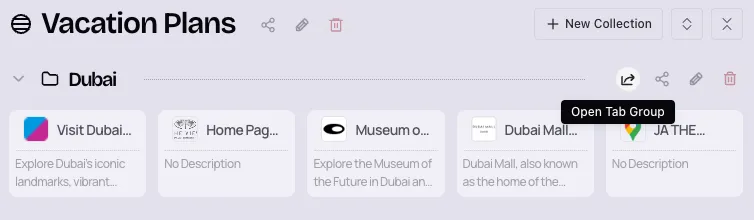
Tab Group Features:
- Launch all Cards in a Collection at once
- Organize as browser tab groups
- Perfect for project work sessions
- Quick access to related resources
Use Cases:
- Starting a new project (open all research tabs)
- Client meetings (open all client resources)
- Learning sessions (open all course materials)
- Research deep dives (open all related articles)
Personalized New Tab Page
Replace your default new tab page with TabBud for instant access to organized content.
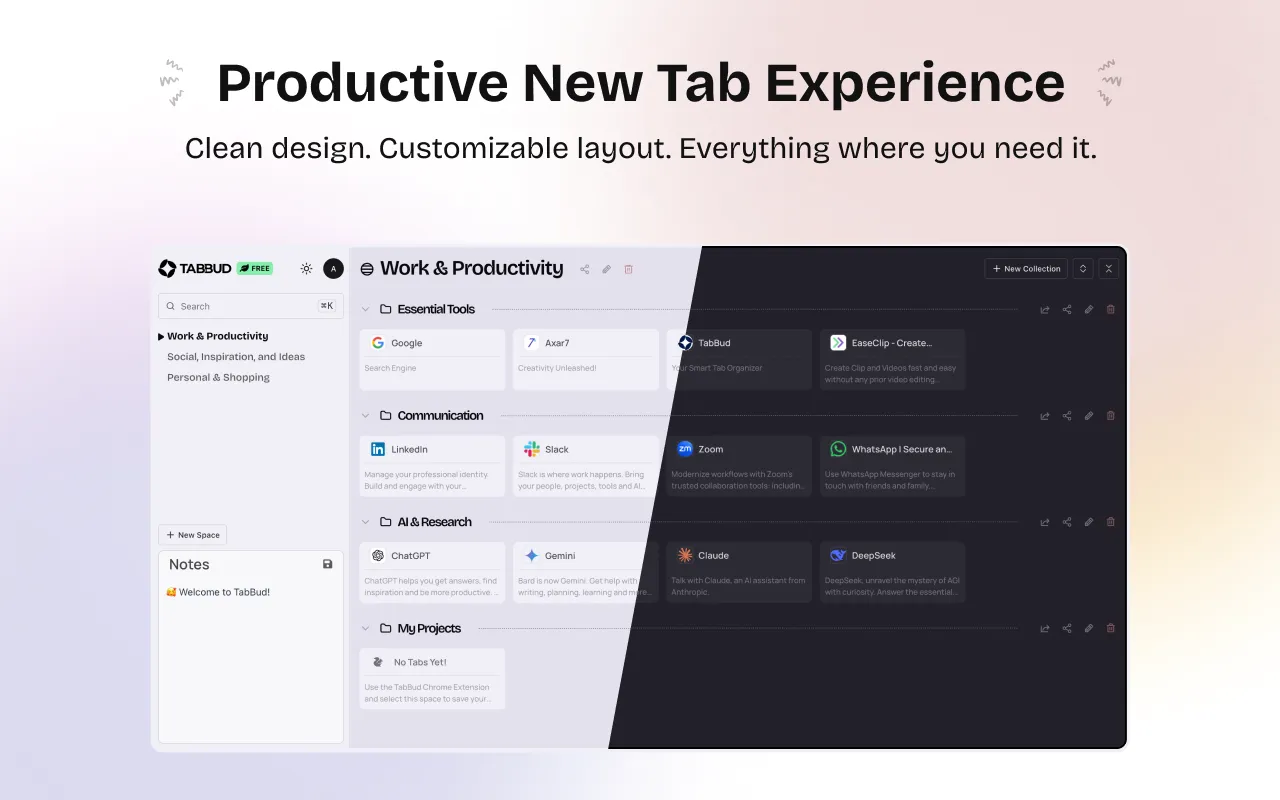
New Tab Features:
- Quick access to all Spaces and Collections
- Recent Cards display
- Quick save current tab
- Search from new tab
- Customizable layout
Benefits:
- TabBud becomes your browser’s command center
- Faster access to saved content
- Reduced need to open extension popup
- Seamless workflow integration
Context Menu Integration
Save tabs directly from browser context menu.
Context Menu Features:
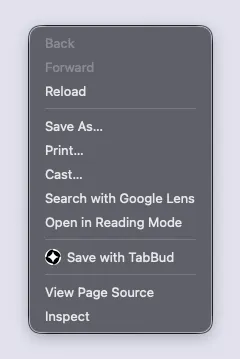
- Right-click anywhere on a page
- Select “Save with TabBud”
- Choose destination Space/Collection
Reordering Everything
Drag and drop to organize Spaces, Collections, and Cards exactly how you want.
Reordering Capabilities:
- Drag Spaces to prioritize
- Reorder Collections within Spaces
- Organize Cards within Collections
- Visual feedback during dragging
- Instant save of new order
AI Collection Summaries (All Plans)
Every Collection with 3 or more tabs gets a short, two-sentence AI summary under its title: the topic, the kind of pages, and the sites that matter. You remember why you saved a Collection without opening a single tab.
How it works:
- Summaries update on their own when you add, remove or edit tabs (at most once a day)
- New Collections get their first summary within about an hour
- Click the pencil to write your own summary instead; yours always wins
- Rate any summary with 👍 or 👎
- Everyone a Space is shared with sees the same summary
AI summaries are included on every plan, Free included.
Multi-Browser Support
Use TabBud across multiple browsers and systems under the same account.
Multi-Browser Features:
- Single account for all browsers
- Full periodic sync support
- Consistent experience across browsers
- Unified organization system
Supported Browsers:
- Google Chrome
- Mozilla Firefox
- Microsoft Edge
- Brave
- Other Chromium-based browsers
Import and Export (All Plans)
Bring your existing tabs in, and take your library with you.
Import:
- Bookmark files from any browser, or straight from your browser’s bookmarks (folders become Collections)
- Exports from OneTab, Toby, Session Buddy, Workona, Tab Manager Plus, Raindrop.io and Pocket
- CSV and Markdown files
- A preview shows what will be created before anything is saved, duplicates are skipped by default, and you can undo an import
Export:
- Everything, one Space or one Collection
- As a bookmarks file (.html), a TabBud backup (.json), a spreadsheet (.csv) or Markdown (.md)
- Generated on your own device
Usage Reports (Pro Plan)
Pro includes usage reports on how you use TabBud.
Privacy and Security
Data Protection
TabBud takes your privacy seriously with enterprise-grade security.
Security Features:
- Encrypted data at database level
- Secure authentication
- No data sharing with third parties
- Aggregate analysis only (no individual tracking)
- Full user control over data
Privacy Practices:
- User data encrypted in transit and at rest
- Only aggregate data used for improvements
- Individual activity not tracked
- Transparent privacy policy
- User data deletion on request
Release History
TabBud ships updates through the Chrome Web Store and Firefox Add-ons, and your browser installs them automatically. Every release is on the changelog, and releases from 1.6 onward have their own post (linked below).
| Version | Date | What’s new |
|---|---|---|
| 2.4 | Oct 2026 | AI Collection Summaries: a short summary at the top of every Collection with 3 or more tabs |
| 2.3 | Oct 2026 | Import from browsers, bookmark managers and tab managers; export as HTML, JSON, CSV or Markdown |
| 2.2 | Sep 2026 | Easier navigation: New Space at the top of the sidebar, Profile and Settings top-right, settings drawer, notifications |
| 2.1 | Sep 2026 | Cleaner Notes and Supercharge experience |
| 2.0 | Aug 2026 | New UI foundation (Tailwind CSS and shadcn/ui) with lower memory use |
| 1.6 | Aug 2026 | Colorful Collections, bigger Space titles, and moving Collections between Spaces |
| 1.5 | Nov 2025 | Continue with Google, and a narrow grid layout |
| 1.4 | Oct 2025 | Drag-and-drop reordering, resizable sidebar, Grid, List and Grid List layouts, right-click “Save with TabBud” |
| 1.3 | Oct 2025 | Light, Dark and Auto themes, launch a Collection as a tab group, resource usage insights, walkthrough tour |
| 1.2 | Oct 2025 | Shared Spaces and Compact Mode |
| 1.1 | Oct 2025 | Cloud-synced notes, and Firefox and Edge support |
| 1.0 | Jun 2025 | Spaces and Collections, one-click save, new tab page, search and cross-browser sync |
Feature Comparison: Free vs Pro
| Feature | Free Plan | Pro ($49 one-time) |
|---|---|---|
| Stored Tabs | Up to 200 | Unlimited |
| Collections | Up to 20 | Unlimited |
| Spaces | Up to 5 | Unlimited |
| Global Search | ✅ | ✅ |
| Cloud Sync | ✅ | ✅ |
| Cloud Notes | ✅ | ✅ |
| Dark Mode | ✅ | ✅ |
| Import and Export | ✅ | ✅ |
| AI Collection Summaries | ✅ | ✅ |
| Usage Reports | ❌ | ✅ |
| Shared Spaces | ❌ | ✅ |
| Support on X | ❌ | ✅ |
Tips for Maximizing Features
- Use Notes Liberally: Add context to important Cards
- Organize Regularly: Keep Spaces and Collections focused
- Leverage Search: Use keywords in titles and notes
- Share Strategically: Use sharing for collaborative projects
- Customize Your Experience: Find the theme and layout that works for you
- Launch Tab Groups: Use Collections for focused work sessions
Conclusion
TabBud’s comprehensive feature set makes it more than just a tab manager—it’s a complete productivity platform for organizing your digital research and resources. By understanding and utilizing these features, you can transform your browsing experience and boost your productivity.
Ready to try it? Install TabBud and follow the one-minute setup guide. Then check out our guides on TabBud pricing, team collaboration, and productivity tips.
Start using TabBud’s advanced features today and experience the difference professional tab management can make.